How to Log in to Microsoft 365 Web Apps (Outlook, Teams, OneDrive) – Complete Guide

How to Sign in to Microsoft 365

Step 1: Visit the Microsoft 365 Portal

Go to https://www.office.com/ in your web browser. Click on the Sign in button on the homepage.

Step 2: Enter Your Email Address

On the login screen, type your Microsoft 365 email address and click Next.

Step 3: Enter Your Password

Type your password and proceed by clicking Sign in.

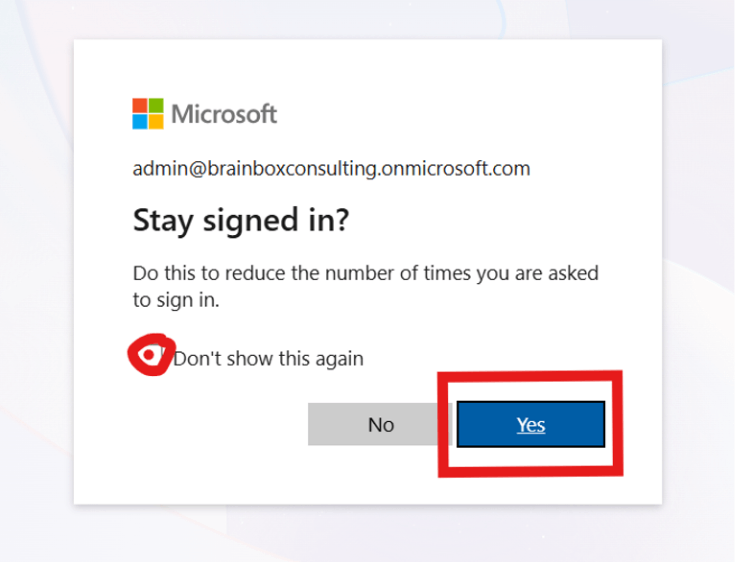
Step 4: Stay Signed in Prompt

You may see a prompt asking if you want to stay signed in. Select Yes and enable the checkbox if you are on a personal device.

Step 5: Access Microsoft 365 Dashboard

Once logged in, you will land on the Microsoft 365 Copilot interface. Use the App Launcher to access apps like Outlook, Teams, and OneDrive.

Direct Links to Microsoft 365 Web Applications

Administrator Portals

Expert Tips for Secure Login

  • Always use a secure internet connection.
  • Avoid saving credentials on shared devices.
  • Enable multi-factor authentication (MFA) if available.
  • Always sign out after using public systems.